
Why This Matters for the End User Experience in the EEA
If you manage Windows 11 devices for users in the European Economic Area (EEA), you’ve probably already seen it: a new prompt popping up asking users whether they want to “use this account for other Microsoft apps and services on this device.”
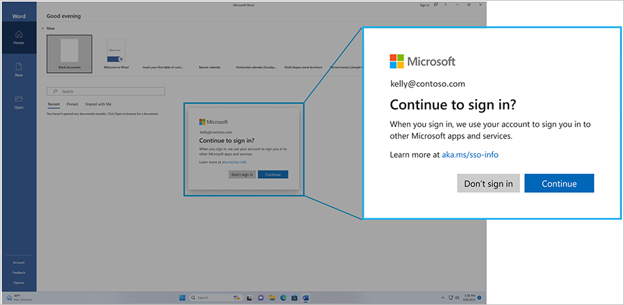
Figure: Screenshot of the new Windows SSO permission prompt as seen by end users
This prompt exists because of EU digital fairness regulations that require Microsoft to give end users an explicit choice about whether their Windows sign-in identity is used for single sign-on (SSO) across other Microsoft apps. On paper, that’s a good thing for consumer privacy. In practice, on corporate, Intune-managed devices, it creates a real problem:
- Users don’t understand what the prompt is asking them
- It looks like a security warning, so users hesitate, screenshot it, or open a support ticket
- On shared or kiosk-style devices, it interrupts the sign-in flow every time a new session starts
- Help desks get flooded with “is this phishing?” tickets
- The prompt reappears across app updates, reboots, and re-enrollments, making it feel like Windows is “broken”
For managed corporate devices tied to a Microsoft Entra ID account, there’s no user-choice ambiguity to protect – IT already governs the identity, the apps, and the SSO trust boundary. The prompt is simply friction with zero added value to the end user experience.
Microsoft heard this feedback loudly, and as of the July 2026 security update for Windows 11 24H2 and 25H2, they’ve shipped an admin control that lets IT pre-approve this SSO consent on managed devices – restoring the seamless SSO experience users expect, while leaving the prompt fully intact on personal/unmanaged devices where the regulation is actually meant to apply.
This post walks through how to deploy that setting through Intune – and an important gotcha I hit along the way that changed the whole approach.
What the Policy Does
Microsoft’s fix is a simple registry-backed policy:
| Setting | Value |
| Registry path | HKLM\SOFTWARE\Policies\Microsoft\Windows\AAD |
| Value name | AutoAcceptSsoPermission |
| Type | REG_DWORD |
| Enabled (1) | SSO permission is auto-accepted; users never see the prompt |
| Disabled / Not set (0) | Default behavior – prompt is shown as normal |
Important scoping notes before you roll this out:
- Only applies to Microsoft Entra ID accounts on managed devices (Intune, GPO, ConfigMgr, or any tool that can write the registry value)
- Personal Microsoft accounts still see the prompt – this policy does not (and cannot) suppress it there
- Unmanaged devices are unaffected
- Requires Windows 11 24H2 or 25H2 with the July 2026 cumulative update or later
The Gotcha: Why a Custom ADMX Won’t Work Here
My first instinct was to package this as a custom ADMX/ADML pair and deploy it through Intune’s Import ADMX feature (Administrative Templates). That seemed reasonable – it’s exactly how you’d deliver most registry-backed policies that don’t have a native Settings Catalog / CSP equivalent yet.
It didn’t work. Every attempt to assign the profile came back with this error:
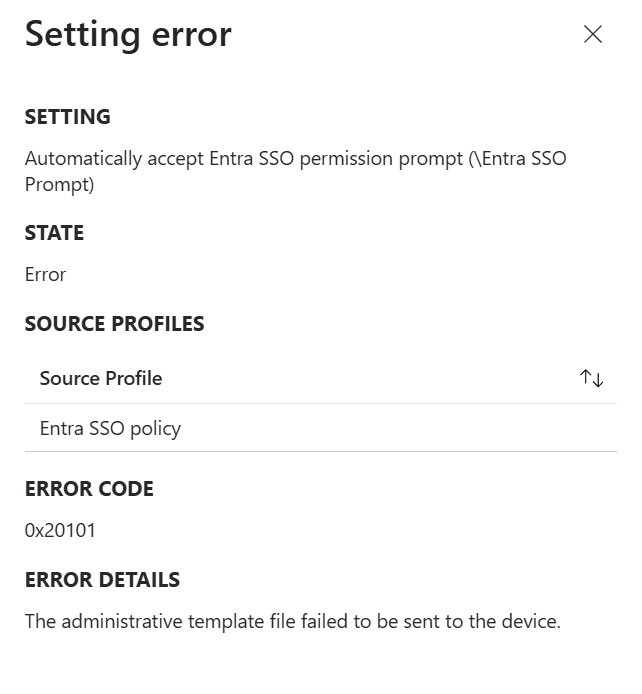
Figure: Intune setting error screen showing error code 0x20101 – ‘The administrative template file failed to be sent to the device.’
After digging through Microsoft Learn, I found the actual root cause on the Win32 and Desktop Bridge app ADMX policy Ingestion documentation page:
| “When the ADMX policies are ingested, the registry keys to which each policy is written are checked so that known system registry keys, or registry keys that are used by existing inbox policies or system components, aren’t overwritten. This precaution helps to avoid security concerns over opening the entire registry. Currently, the ingested policies aren’t allowed to write to locations within the System, Software\Microsoft, and Software\Policies\Microsoft keys, except for [an explicit allow-list of paths]…” |
Source: Win32 and Desktop Bridge app ADMX policy Ingestion – Microsoft Learn
That allow-list covers things like Office, Edge, Visual Studio, OneDrive, Internet Explorer, Exchange, and IME/proofing tools registry paths. HKLM\SOFTWARE\Policies\Microsoft\Windows\AAD is not on that list.
In other words: this isn’t a bug in my ADMX (although I did find and fix a couple of real bugs along the way – an empty key=”” attribute and a mismatched presentation element from an ADMX-generator tool I tried). It’s a hard security restriction baked into Windows’ MDM ADMX ingestion pipeline. Any custom ADMX targeting this registry path – no matter how well-formed – will be silently rejected by the device when Intune tries to push it. Microsoft’s own doc confirms the workaround directly:
| “Settings that can’t be configured using custom policy ingestion have to be set by pushing the appropriate registry keys directly (for example, by using PowerShell script).” |
So: no ADMX. Direct registry write it is.
The Fix: Deploy via Intune Proactive Remediation
Instead of an ADMX-backed Administrative Template, deploy this as a Proactive Remediation (detection + remediation script pair). This has a few advantages over a one-shot Platform script too: it runs on a recurring schedule, gives you per-device compliance reporting in Intune, and automatically re-applies the fix if anything reverts the value (e.g. a policy conflict, an OS reset, or manual tampering).
Detection Script – Detect-AutoAcceptSsoPermission.ps1
The script can be downloaded from my Github repository Remediation-Scripts/Detect-AutoAcceptSsoPermission.ps1 at main · pelarsen/Remediation-Scripts
$regPath = "HKLM:\SOFTWARE\Policies\Microsoft\Windows\AAD"$valueName = "AutoAcceptSsoPermission"$desiredValue = 1 try { $current = Get-ItemProperty -Path $regPath -Name $valueName -ErrorAction SilentlyContinue if ($null -ne $current -and $current.$valueName -eq $desiredValue) { Write-Output "Compliant: $valueName is set to $desiredValue." exit 0 } Write-Output "Non-compliant: $valueName is not set to $desiredValue." exit 1}catch { Write-Output "Non-compliant: unable to read $regPath\$valueName - $($_.Exception.Message)"
Remediation Script – Set-AutoAcceptSsoPermission.ps1
The script can be downloaded from my Github repository Remediation-Scripts/Set-AutoAcceptSsoPermission.ps1 at main · pelarsen/Remediation-Scripts
#Requires -RunAsAdministrator $ErrorActionPreference = "Stop" $regPath = "HKLM:\SOFTWARE\Policies\Microsoft\Windows\AAD"$valueName = "AutoAcceptSsoPermission"$desiredValue = 1 try { if (-not (Test-Path -Path $regPath)) { New-Item -Path $regPath -Force | Out-Null Write-Output "Created registry key: $regPath" } $current = Get-ItemProperty -Path $regPath -Name $valueName -ErrorAction SilentlyContinue if ($null -ne $current -and $current.$valueName -eq $desiredValue) { Write-Output "$valueName already set to $desiredValue. No change needed." exit 0 } New-ItemProperty -Path $regPath -Name $valueName -Value $desiredValue -PropertyType DWord -Force | Out-Null Write-Output "Set $regPath\$valueName = $desiredValue" exit 0}catch { Write-Error "Failed to set $valueName at $regPath : $($_.Exception.Message)" exit 1}
Both scripts are idempotent, log clearly, and use proper exit codes (0 = compliant/success, 1 = non-compliant/failure) so Intune reports status correctly.
Step 1: Create the Proactive Remediation in Intune
- Go to Devices > Scripts and remediations > Remediations > Create script package
- Name it something like “Entra SSO Prompt – Auto Accept”
- Upload Detect-AutoAcceptSsoPermission.ps1 as the detection script
- Upload Set-AutoAcceptSsoPermission.ps1 as the remediation script
- Settings: Run using logged-on credentials = No (needs SYSTEM for HKLM); Enforce script signature check = No; Run in 64-bit PowerShell host = Yes
- Assignment: schedule daily, assign to your pilot device group first
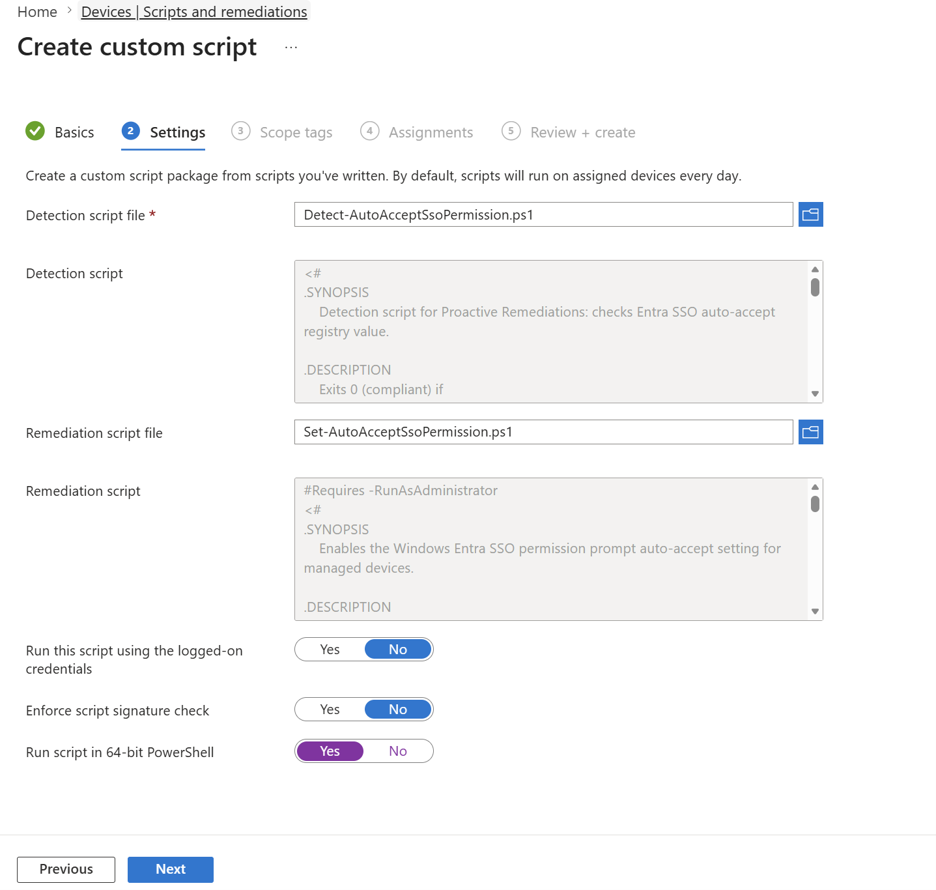
Figure: Intune Proactive Remediation script package creation screen with both scripts uploaded
Step 2: Validate Before Broad Rollout
- Confirm the target devices are on Windows 11 24H2/25H2 with the July 2026 update installed
- Manually trigger the remediation from Devices > Scripts and remediations > Proactive remediations by selecting the device and choosing Run script, or wait for the next scheduled run
- Check the registry value directly (PowerShell below)
Get-ItemProperty -Path "HKLM:\SOFTWARE\Policies\Microsoft\Windows\AAD" -Name AutoAcceptSsoPermission
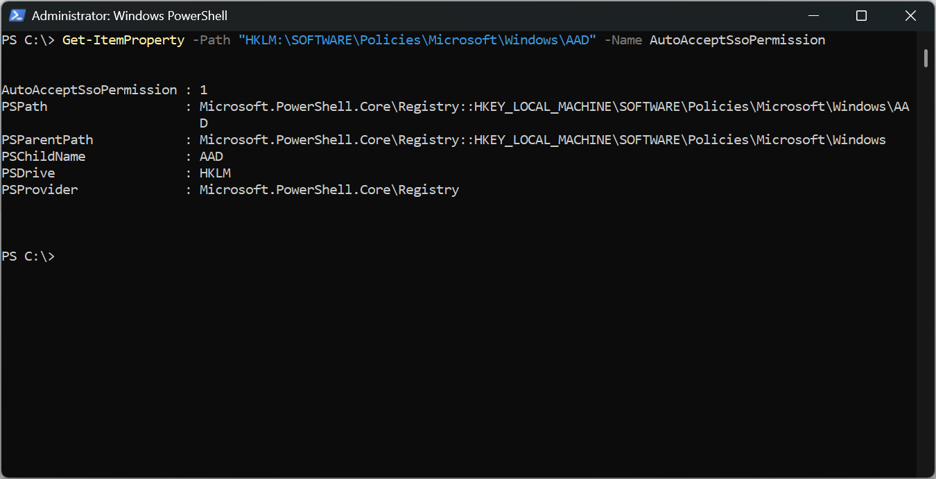
Figure: PowerShell output confirming AutoAcceptSsoPermission = 1 on a test device
Rollout Recommendation
Roll this out in rings, same as any other change:
- IT/Test ring – validate no unexpected side effects and confirm the detection/remediation logic behaves as expected
- Pilot ring – a representative slice of EEA users, since that’s where the prompt is most visible
- Broad deployment – once validated, expand to all managed Windows 11 24H2+/25H2+ devices
Wrapping Up
This is a small policy with an outsized impact on daily user experience. For EEA-based organizations especially, removing this unnecessary friction from the sign-in flow means fewer help desk tickets, less user confusion, and a cleaner, more “it just works” SSO experience – while still respecting the regulatory intent behind the prompt on personal and unmanaged devices.
The bigger lesson here: not every registry-backed Windows setting can be delivered through a custom ADMX in Intune. Microsoft locks down MDM ADMX ingestion from writing to most of Software\Policies\Microsoft and Software\Microsoft to prevent custom templates from silently overriding inbox policies or system components – see the Win32 and Desktop Bridge app ADMX policy Ingestion docs for the full allow-list. When you hit an ADMX ingestion error like 0x20101, check that allow-list before assuming it’s a syntax problem in your own template – a direct registry-write script via Proactive Remediation (or a Win32 app) is often the correct, supported path instead.
As always, test in a ring before pushing broadly, and keep an eye on future Windows Insider builds – Microsoft has hinted at additional transparency and admin controls for authentication management coming down the line, and this setting may eventually get proper Settings Catalog / CSP support that avoids the whole issue entirely.
– Per Larsen, osddeployment.tech


