
When Edge is configured as a Enterprise browser with corporate policies configured on it, for managed devices you can configure Microsoft Edge policies in Microsoft Intune. The personal profile is only a lightly managed profile, even on a managed device.
Only the following categories are automatically inherited from the work profile in the Microsoft Edge browser.
- Security
- Data Compliance
- Microsoft Edge Update
You can see the complete list of policies that only applies to the Microsoft Edge work browser here : https://learn.microsoft.com/en-us/DeployEdge/edge-learnmore-personal-browser-policies
Table of Contents
- Introduction
- Microsoft Edge Security Baseline
- Entra ID End User Experience for Blocked Edge Extension
- MSA End User Experience for Blocked Edge Extension
- How can you restrict sign-in to Microsoft Edge
- End User Experience with Microsoft Edge “Restrict Sign-In To”
- Conclusion
Microsoft Edge Security Baseline
In this case you as an IT admin want to ensure what browser extensions are installed on you corporate devices. One way of doing that is by leveraging Microsoft Edge baseline version 128, as the recommendation is to block all extensions and then you can create a specific allow list.
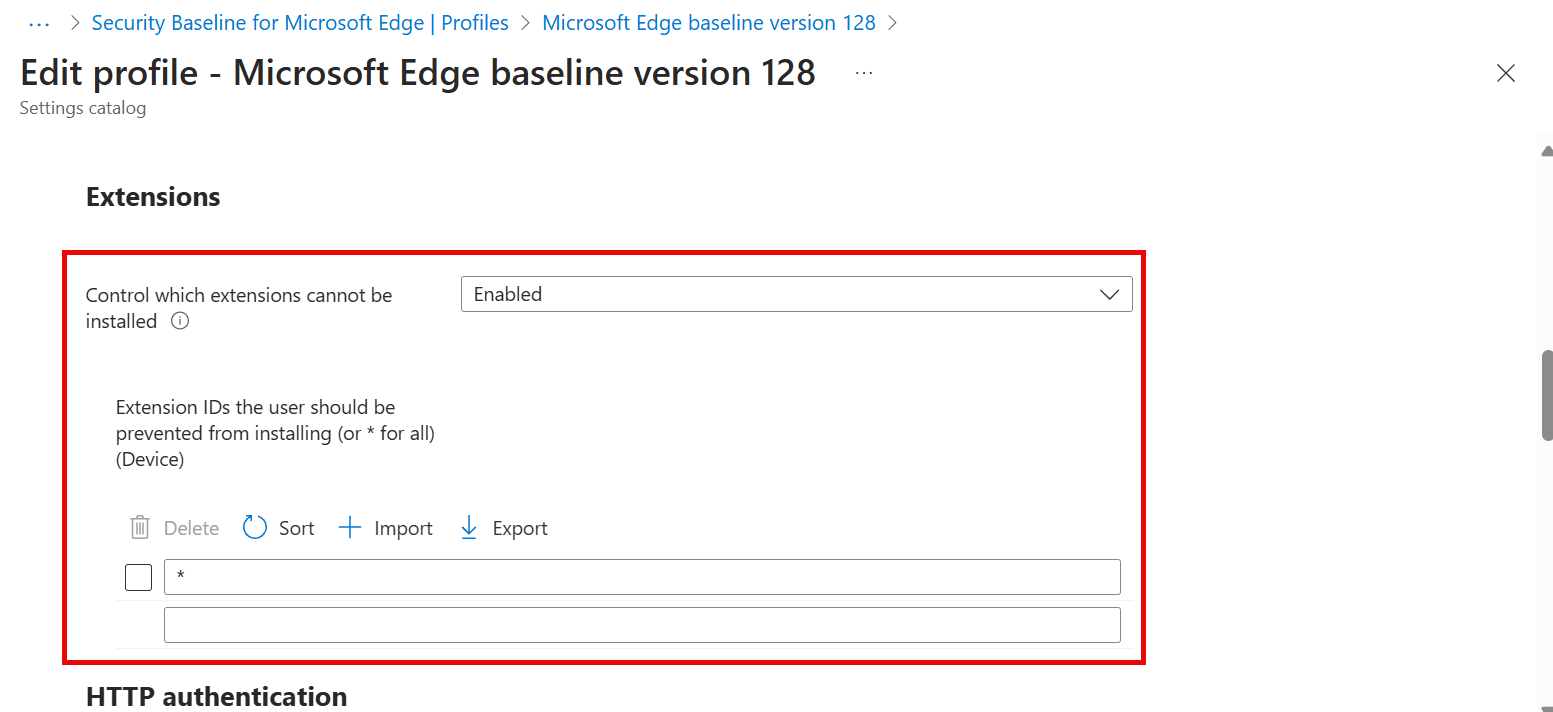
In the Baseline the policy “Control witch extensions cannot be installed” is enabled and configured with “*” so the policy is preventing the end user from installing all extension and the policy is device wide.
Entra ID end user experience for blocked Edge extension
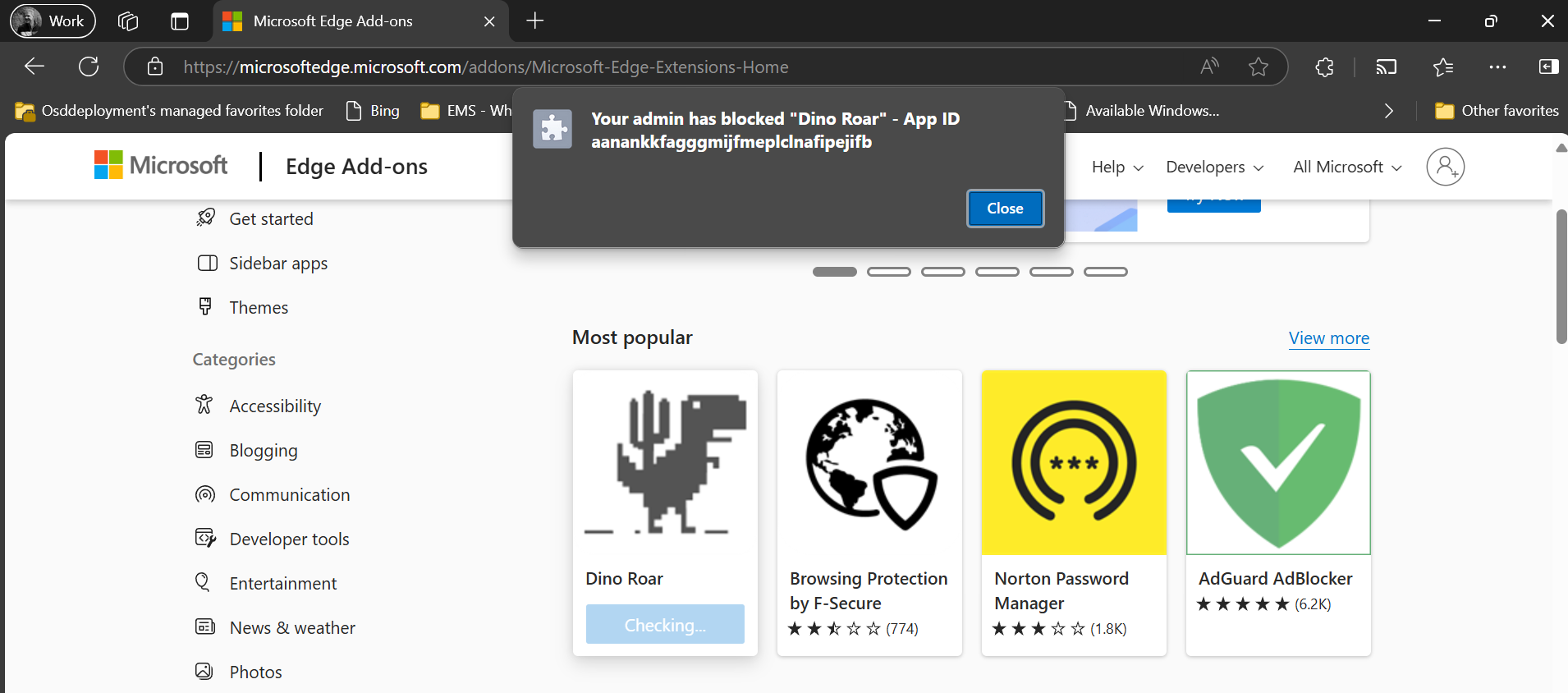
In your work profile where you are signed in with your corporate Entra ID and you are trying to install an extension, in this case “Dino Roar” and the end gets a message that it is blocked by your administrator.
Lets check what the policy are saying now by entering edge://policy in your Edge Work profile
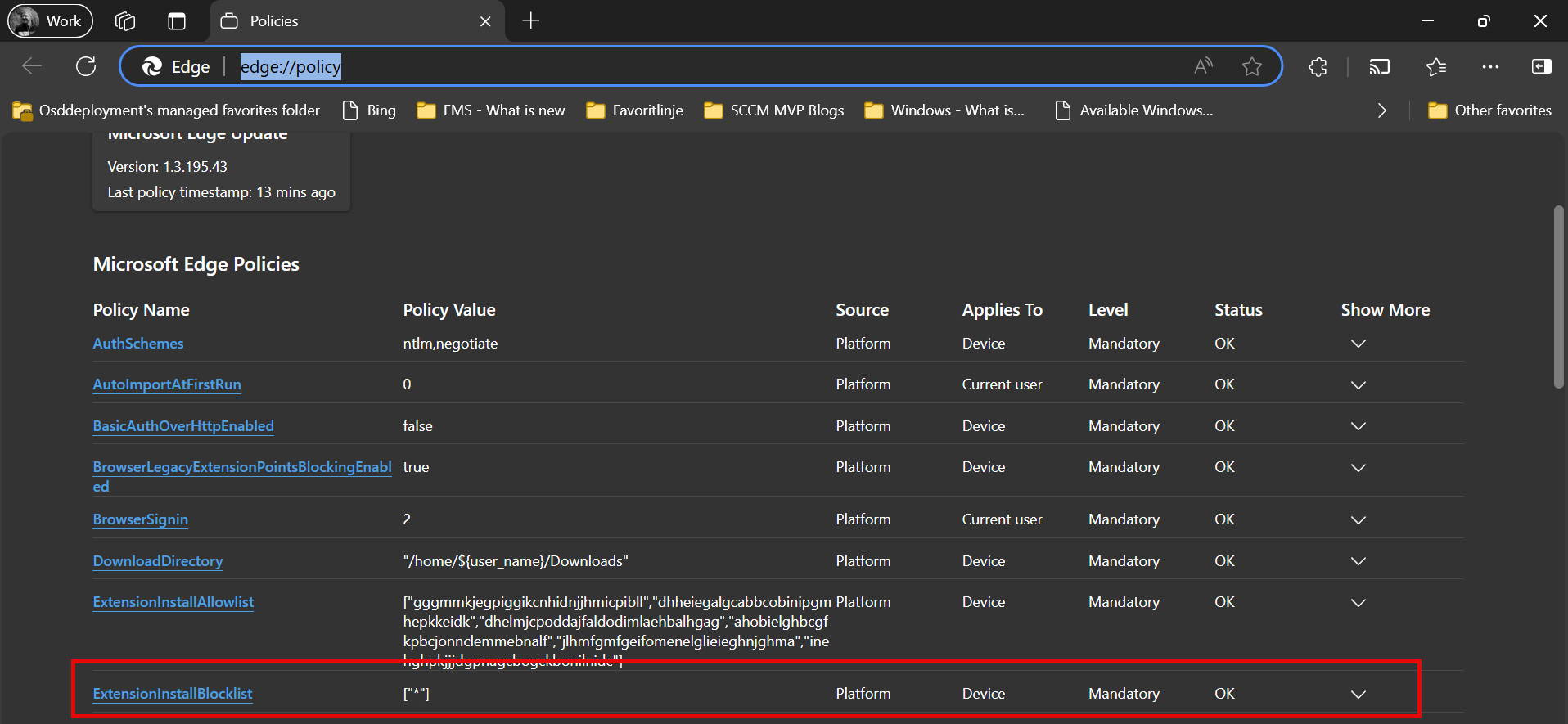
If we go to edge://policy we can verify that the policy has effect on the device and the status is OK.
MSA end user experience for blocked Edge extension
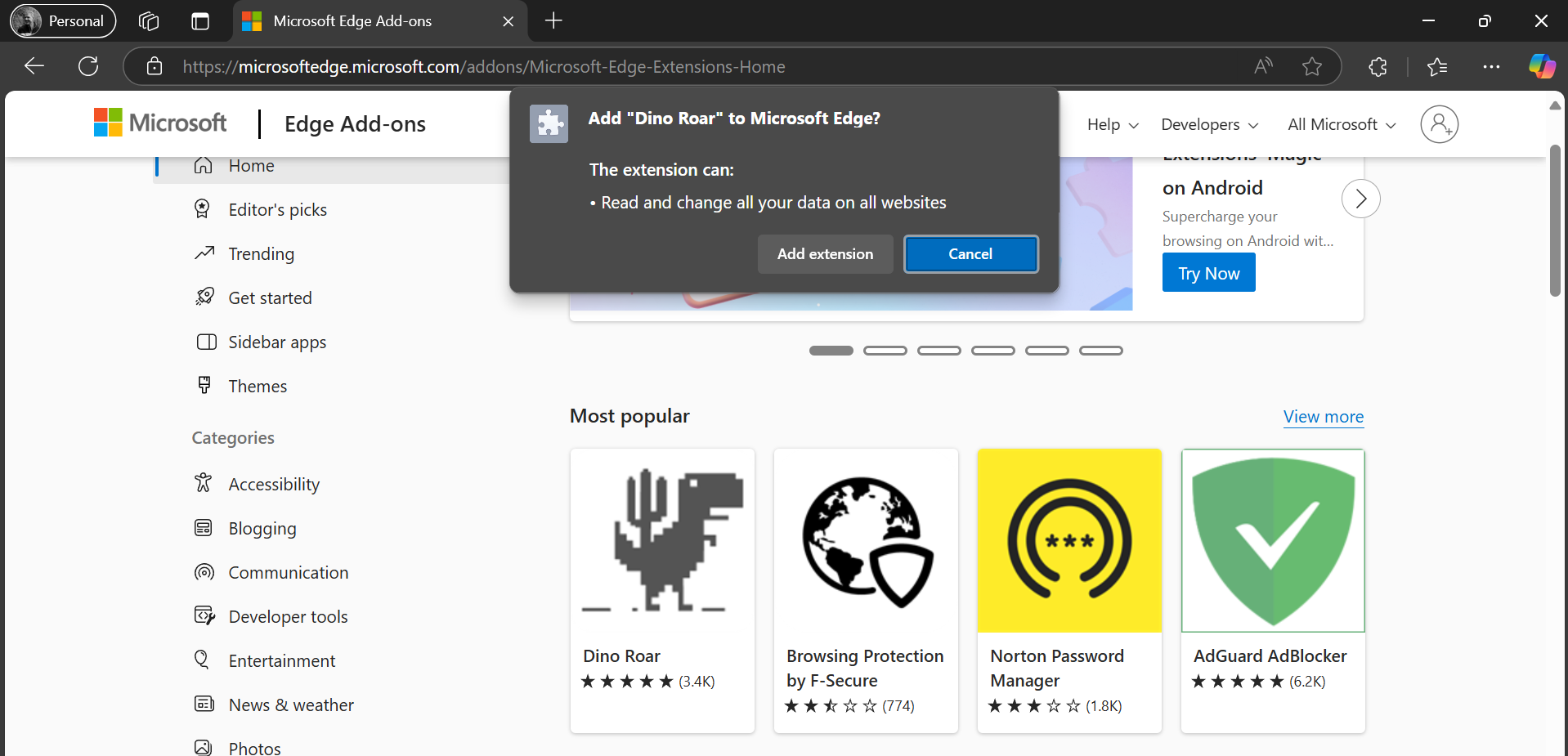
As the policy is a device policy you would expect it to apply to everything on the device – so lets try to sign into Microsoft Edge with a personal account (MSA) – now you are allowed to install the same browser extension “Dino Roar” that you where blocked from installing with your profile signed in with your Entra ID.
Lets check what the policy are saying now by entering edge://policy in your personal Edge profile
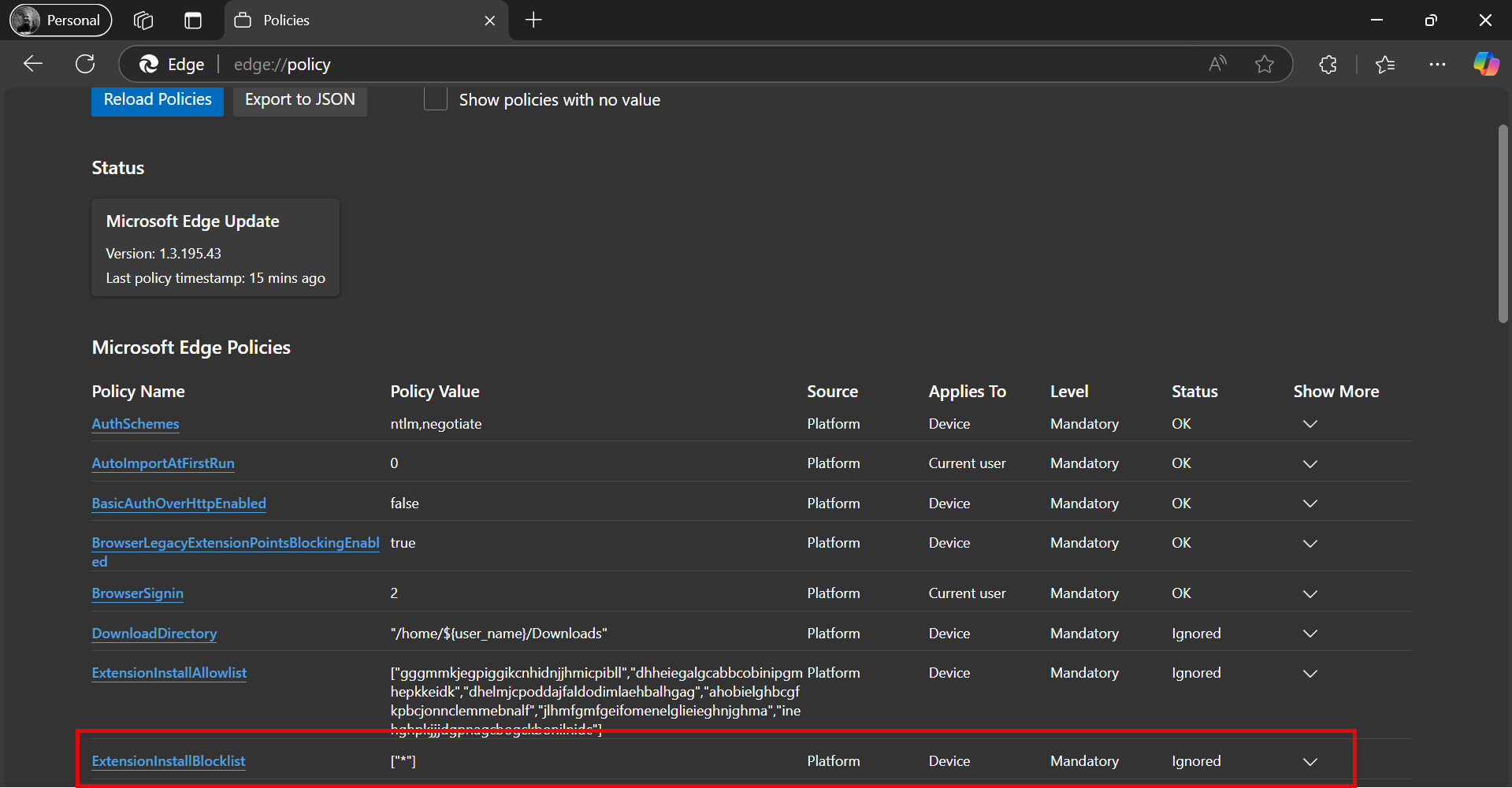
It still shows that ExtensionInstallBlocklist applies to Device – but now the status shows as Ignored.
How can you restrict sign-in to Microsoft Edge
Lets say that you want to block installing browser extensions on your corporate devices – one option is to restrict witch accounts can be used to sign in to Microsoft Edge.
You can create the policy in Microsoft Intune by going to https://intune.microsoft.com/#view/Microsoft_Intune_DeviceSettings/DevicesWindowsMenu/~/configuration Click Create then New policy select Platform Windows 10 and later profile type Settings catalog click Create
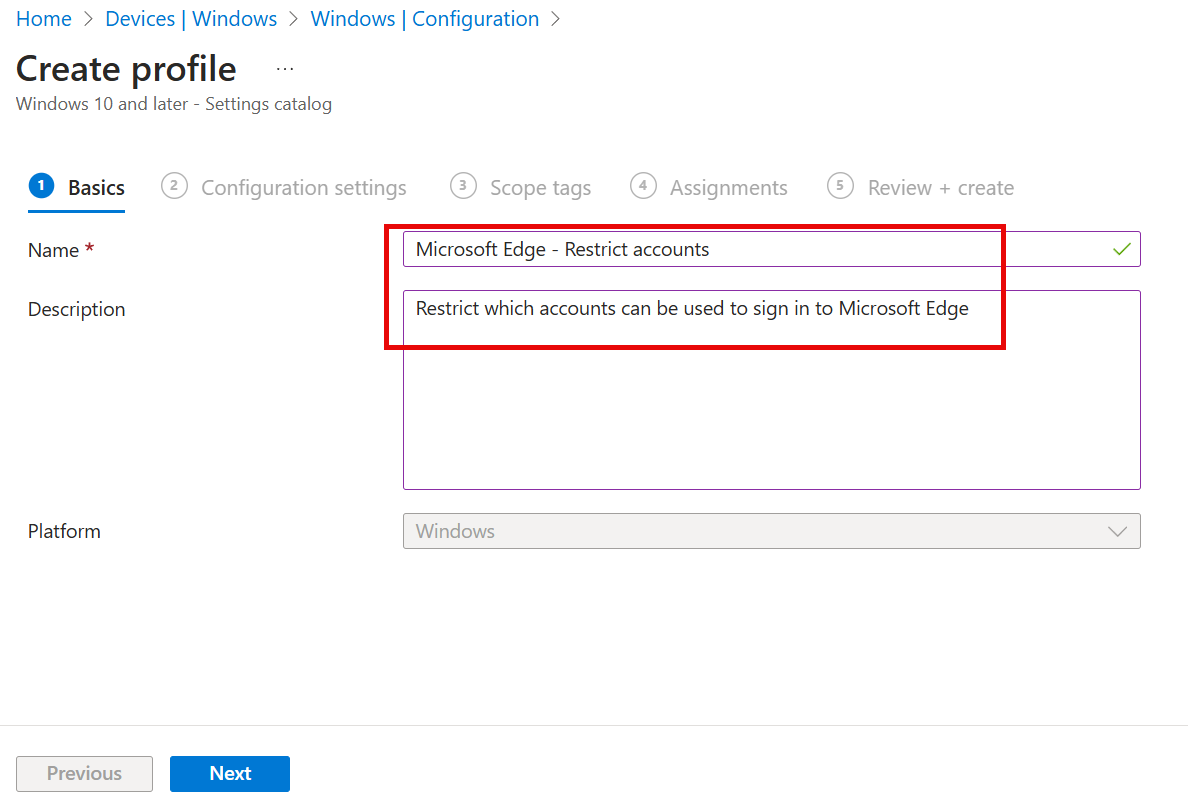
Enter name Microsoft Edge – Restrict accounts enter Description Restrict which accounts can be used to sign in to Microsoft Edge
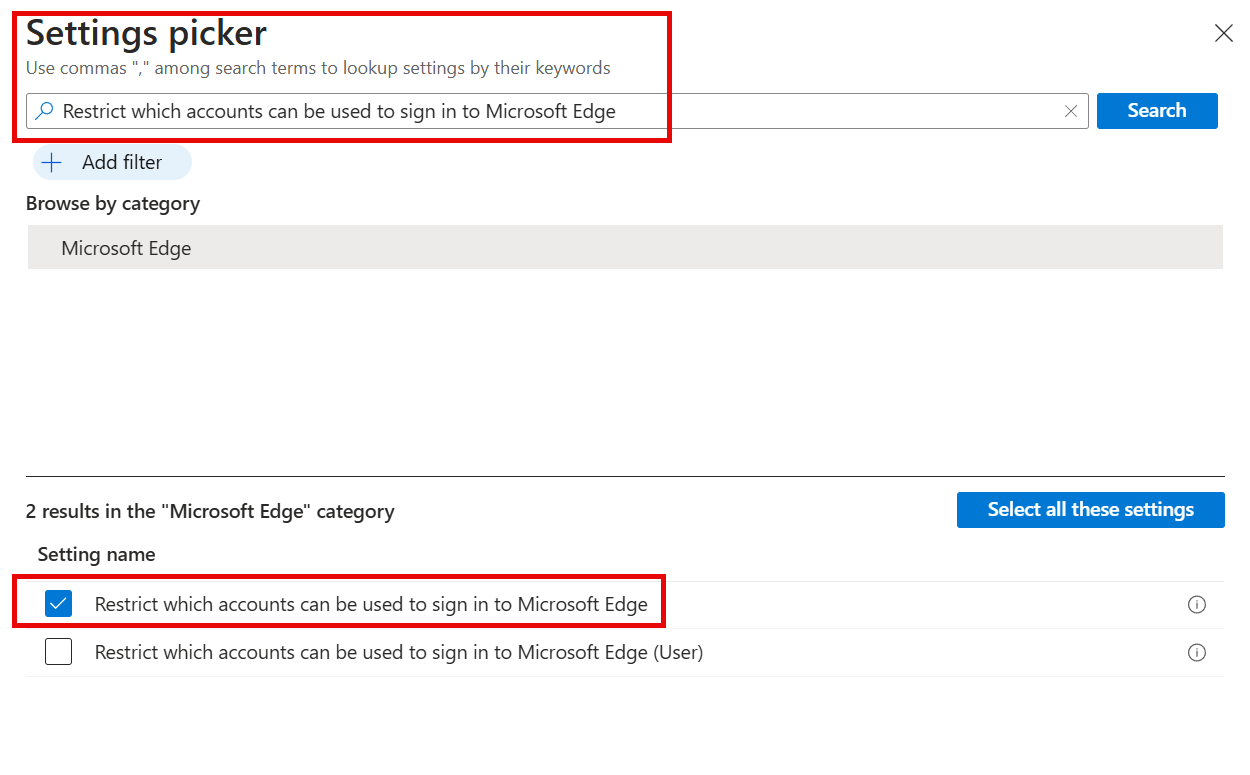
Search for Restrict which accounts can be used to sign in to Microsoft Edge and select Restrict which accounts can be used to sign in to Microsoft Edge
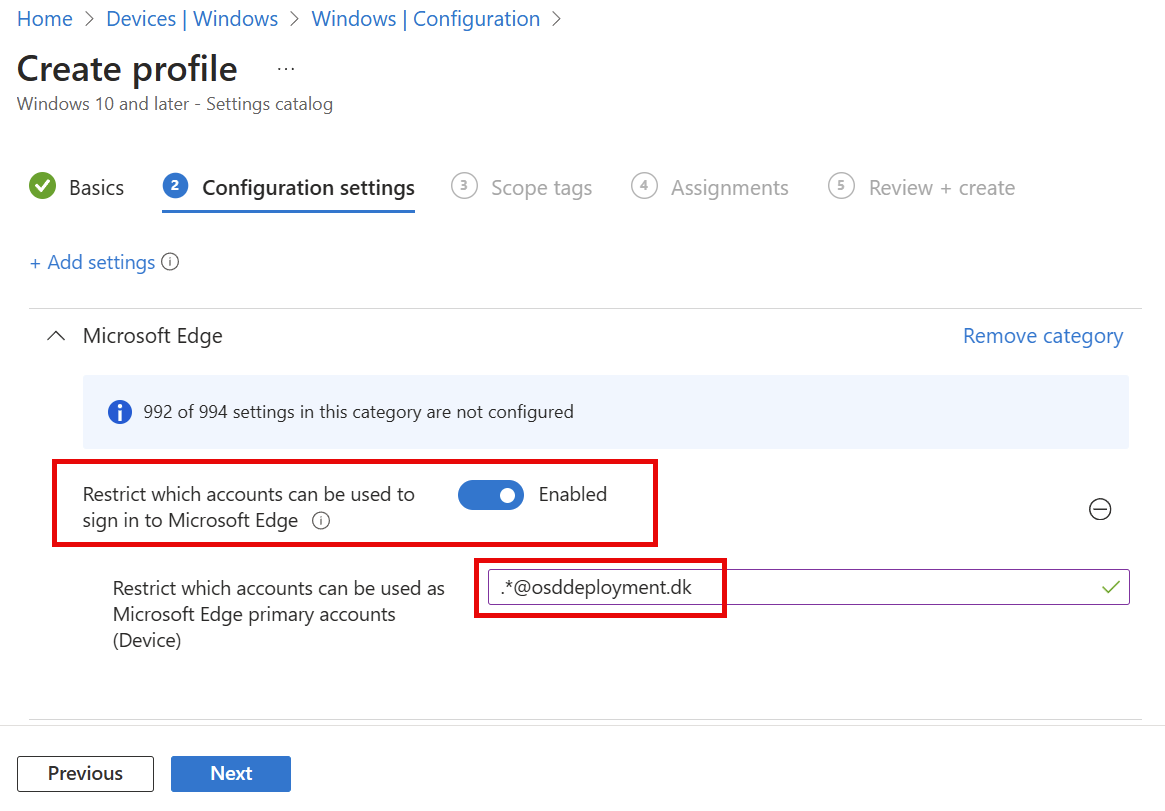
You need to Enable the policy settings and to put in which Entra domain name can be used in Microsoft Edge, in my case I enter .*@osddeployment.dk in Restrict which accounts can be used as Microsoft Edge primary accounts (Device)
Then you just need to assign it to a group of users or devices – and wait for your devices to sync.
End user experience with Microsoft Edge “Restrict Signin To”
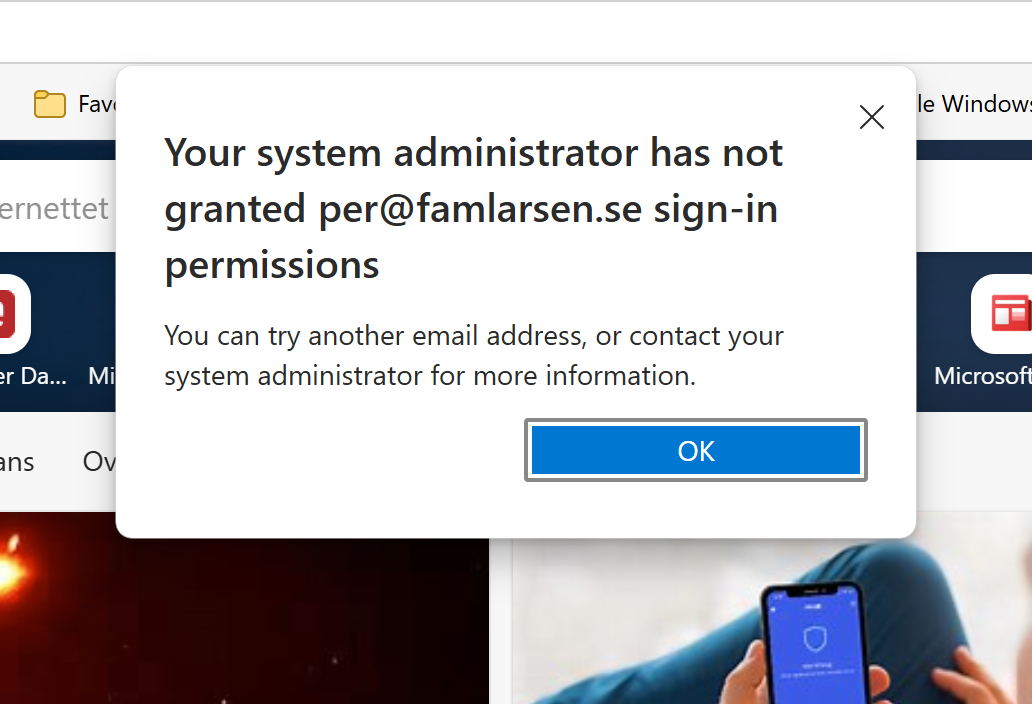
If you have already are signed in with a account that is not in the list, you will get a message like this that I got for my personal account in Microsoft Edge.
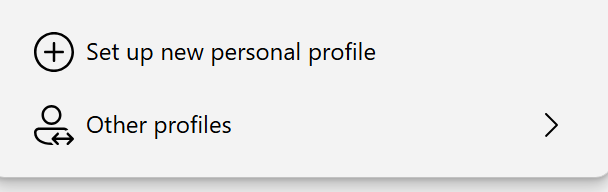
If you try and Set up new personal profile in Microsoft Edge
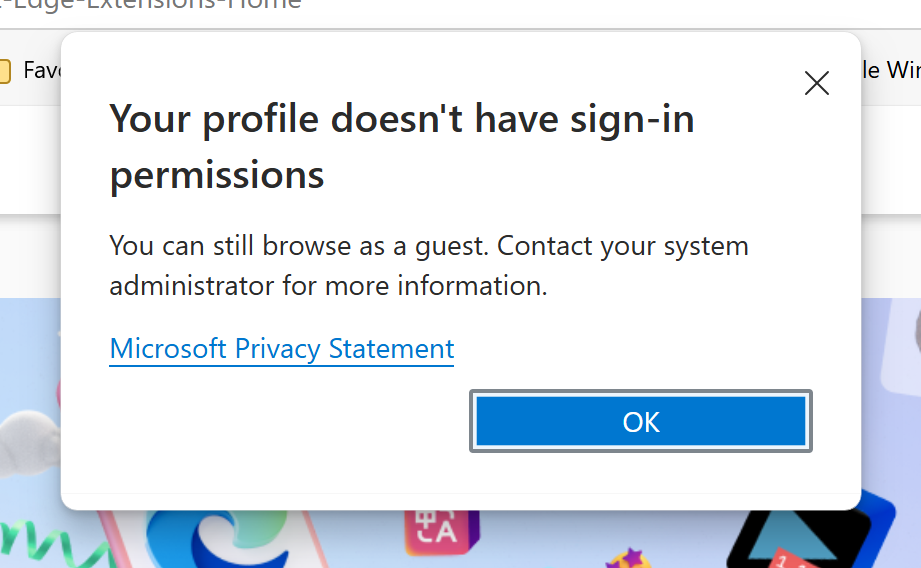
You get a message that Your profile doesn’t have sign-in permissions
You can read more about the policy here : https://learn.microsoft.com/en-us/deployedge/microsoft-edge-policies#restrict-which-accounts-can-be-used-to-sign-in-to-microsoft-edge
Conclusion
If you have requirements on what browser extensions your end users are allowed to install on there devices, it might be a good idea also to restrict how is allowed to sign into your Microsoft Edge browser.
I just showed you one way to do that with Microsoft Intune.

 Cloud First