
Microsoft has released a new Azure AD download
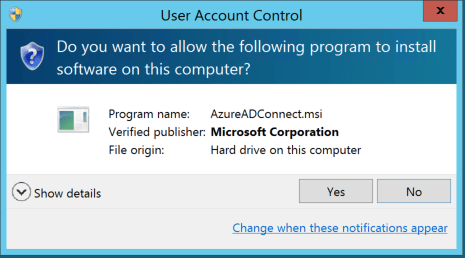
Install the ADConnect.msi – Click yes in the UAC dialog
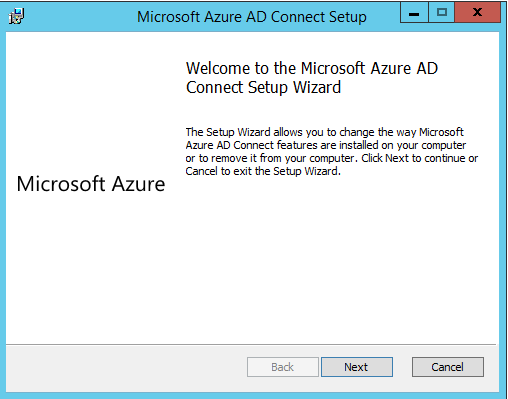
Click Next
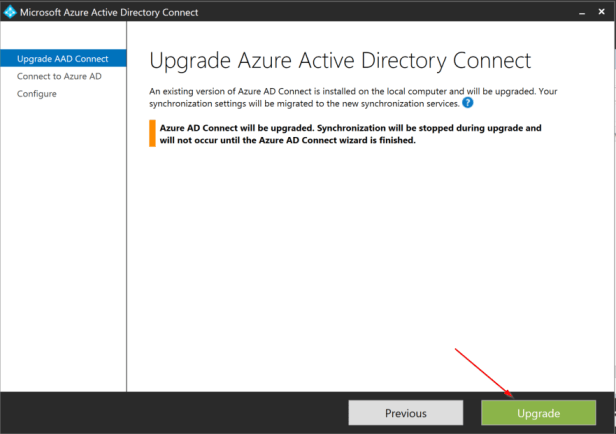
Click Upgrade
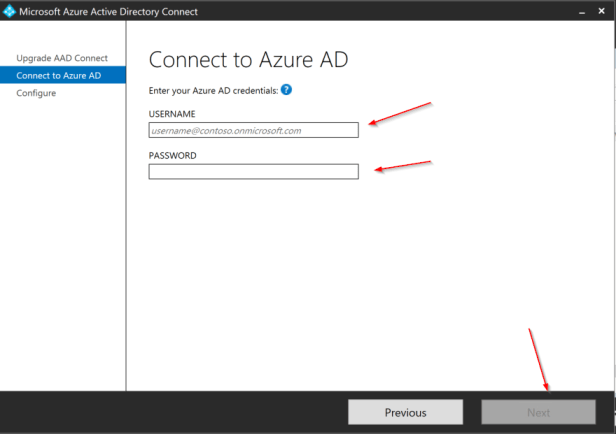
Enter your AzureAD global Admin user account
Click Next
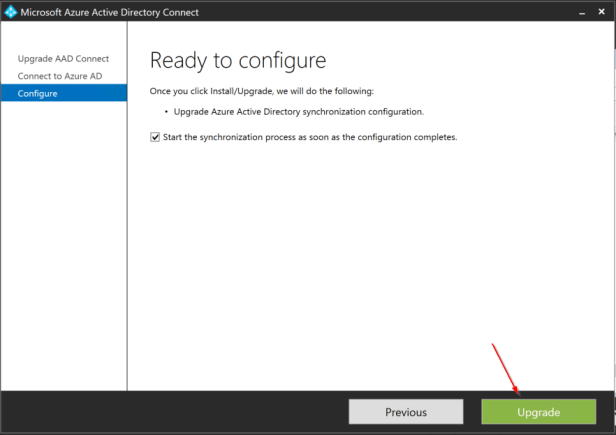
Ready to Upgrade – Click Upgrade
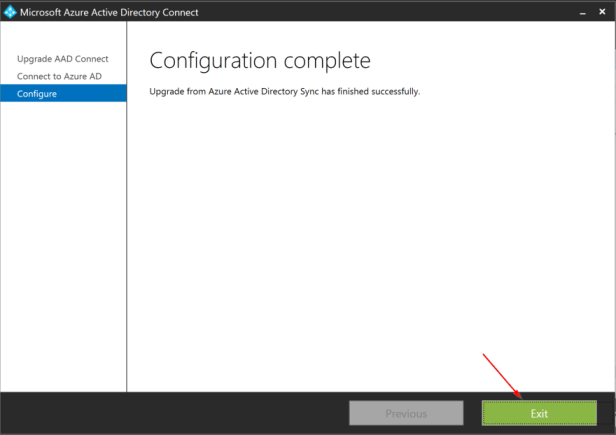
Click Exit
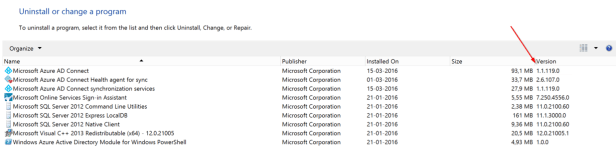
Verify the new version number in “uninstall or change a program”
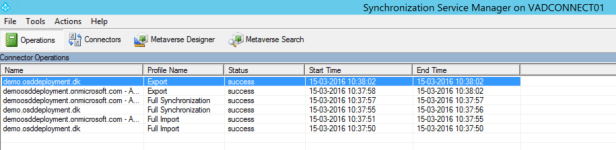
Check the sync is running with success in “Synchronization Service Manager” after the upgrade
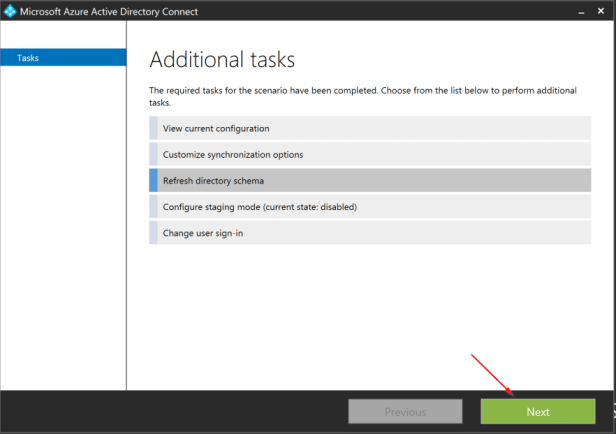
To ensure that your local directory is upgraded with new feature (ex Device Writeback) Then run the “Refresh directory schema” task in “Microsoft Azure Active Directory Connect”
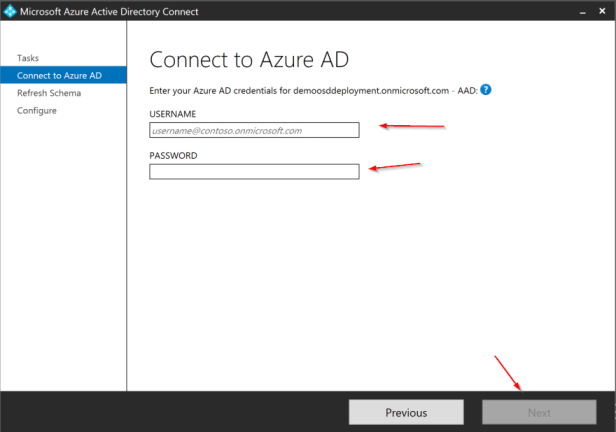
Enter your Global Admin in AzureAD
Click Next
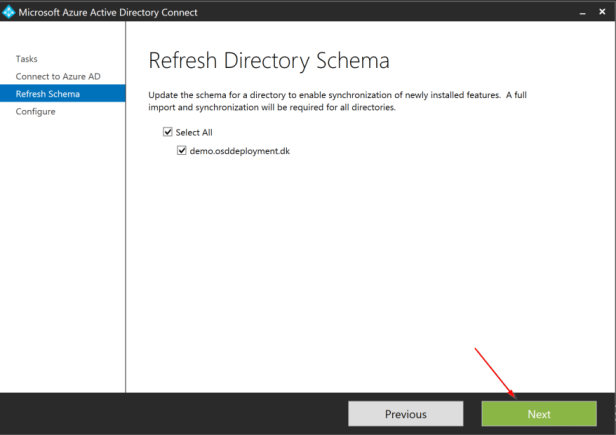
Click Next
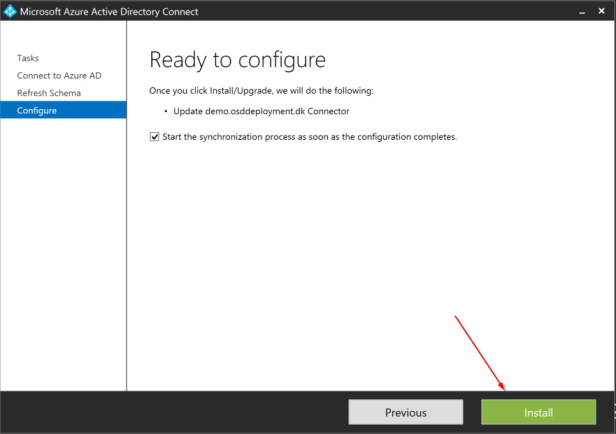
Click Install
Click Exit
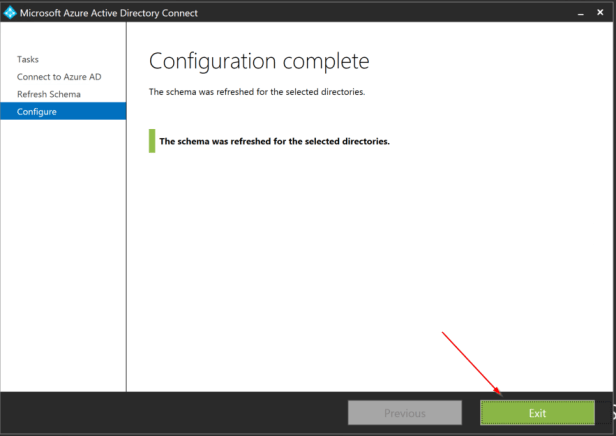
Now you have upgraded the AzureAD Connect and are in production with your new software.

 Cloud First